Do It Best > Automation
Automation options are offered for many EDI (Electronic Data Interchange) vendors. These allow certain processes to run without the need for user involvement. You can access these settings from the Branch Setup form.
1. From the Main Menu, choose Maintenance > Database > Branches > (Select a Branch) > EDI tab.
2. In the Settings for list, choose Do It Best.
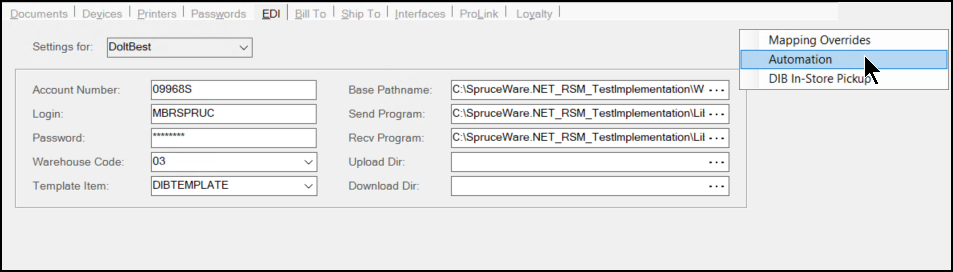
3. Click the Menu Marker  and choose Automation. The Auto Run Schedule for Do It Best displays.
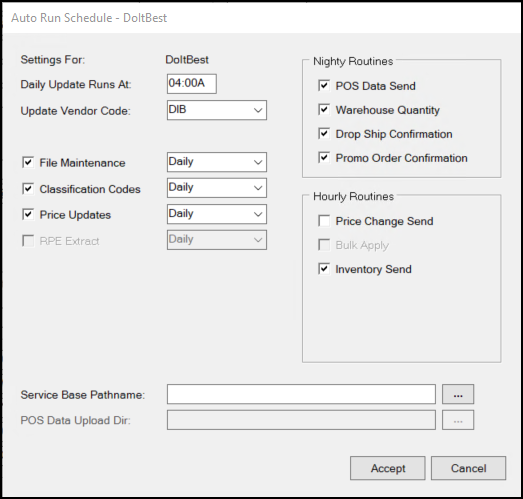
4. Choose the following settings to enable Do It Best automation based on the needs of your business.
Settings For
Choose the Do It Best vendor ID from this list.
Daily Update Runs At Time
This indicates the time of day when any enabled automated processing is currently set to run. If changed, the time should be between business days and should not conflict with any other scheduled processing that might interfere with the EDI update. Some vendors have blackout times where data transmission is not permitted. Please check with your vendor if you have questions.
Update Vendor Code
This is your company's vendor code for the EDI provider. It may or may not be the same as the EDI name used by the application depending upon how you name your vendors.
File Maintenance
This check box can be optionally checked to enable automatic retrieval and application of file maintenance updates from Do it Best Corp. In addition, users can select a "Runs" frequency (either daily or by day of the week). Choose the schedule frequencies from the following: Daily (0), Monday (1), Tuesday (2), Wednesday (3), Thursday (4), Friday (5), Saturday (6), and Sunday (7). The numeric values (in parentheses) represent the enumeration values kept with the wholesaler record in the database and aren't used for selection.
Automated Inventory Data Send (IMCS)Please note that there is a Run Nightly EDI parameter that enables a separate daily "automatic inventory data send" process that occurs at approximately 6 PM (EST) each day (if enabled). This sends Do it Best Corp. a listing of any items where specific fields have changed during the day (or since the last hourly price update if being sent). Deleted items are also transmitted. The "trigger" fields are the following: discontinued, suggested retail, on-hand, on-order, location (the primary or zero (0) location), or store retail (price level 0). Settings in this dialog, such as the file maintenance check box, schedule frequency, and update run time don't have any affect on the "automatic inventory data send" operation. This operation can be enabled for a specific branch by checking the "Inventory Send" option under "Hourly Routines" or globally by checking the "Run Nightly EDI" parameter. |
Classification Codes
If the EDI interface has been configured to automatically retrieve and apply classification code updates, this check box will be enabled and allow selection of a "Runs" frequency; otherwise, you can disregard this option. This is available for EDI processing with Do it Best Corp. Schedule frequencies include the following: Daily (0), Monday (1), Tuesday (2), Wednesday (3), Thursday (4), Friday (5), Saturday (6), and Sunday (7). The numeric values (in parentheses) represent the enumeration values kept with the wholesaler record in the database and aren't used for selection.
Price Updates
If the EDI interface has been configured to automatically retrieve and apply price updates updates, this check box will be enabled and allow selection of a "Runs" frequency; otherwise, you can disregard this option. This is available for EDI processing with Do it Best Corp. Schedule frequencies include the following: Daily (0), Monday (1), Tuesday (2), Wednesday (3), Thursday (4), Friday (5), Saturday (6), and Sunday (7). The numeric values (in parentheses) represent the enumeration values kept with the wholesaler record in the database and aren't used for selection.
RPE Extract
"RPE" stands for Retail Pricing Extract and is only used for EDI with True Value Company. This does not apply to EDI with Do it Best Corp.
Nightly RoutinesThis panel includes EDI functions which are done daily (between business days). In this case, the nature of the processes are daily, so no frequency option is necessary. POS Data SendSome EDI providers need Point of Sale data transmitted to them on a daily basis. This is typically done for rewards/loyalty programs. Currently, this only applies to ACE Hardware Corporation, Do it Best Corp., and True Value. Warehouse QuantityIf your EDI interface updates warehouse quantities (for the Catalog) and you want to enable this on a daily basis, check the box to enable the feature. The check box is disabled and won't allow selection in cases where it does not apply. Promo Order ConfirmationDo It Best can create a promotion order configuration file when you select this option. To learn more, see Do It Best > Promo Order Confirmation. |
Hourly RoutinesThis panel includes functions which may be done on an hourly basis. This does not necessarily mean every hour (there are sometimes limitations) during a 24-hour period and data is only sent or processed when applicable. For example, the price change send won't run unless there are price changes during the current period. For Do it Best Corp., we recommend that you choose only one of these settings: Price Change Send --or-- Inventory Send. Price Change SendThe hourly price change send is available for EDI with Do it Best Corp. If enabled (checked), this sends any new applied price updates for Do it Best items that haven't previously been transmitted. Only items with a primary vendor (branch) matching the EDI wholesaler record's vendor code are transmitted. The data source is applied price update document details (dbo.PriceUpdatesDetail). An "EDI Status" (EDIStatus) flag in the document data (dbo.Documents) is set once a price update has been transmitted. In addition to Price Update documents, changes to inventory can also be sent at this time. This essentially performs the same operation as the "automated inventory data send" operation when enabled. If the parameter for "Run Nightly EDI" is checked, and there were any changes to selected item fields since the last hourly update (or daily "automated inventory data send"), those changes are transmitted to Do it Best Corp. after transmitting the price updates. This is referred to as IMCS data. The item fields that "trigger" an EDI event are changes to the: discontinued, suggested retail, on-hand, on-order, location (the primary or zero (0) location), or store retail (price level 0). Deleted items are also transmitted. Changes to items generate an "EDI event" record (dbo.EDIEvents). Once transmitted, the events are cleared (deleted). When checked, the field PriceChangesSendNightly for the branch's wholesaler record is set to a value of "true" (1); otherwise, the field is set to "false" (0). Bulk Apply (Hourly)This hourly bulk apply is not used for EDI with Do It Best or the True Value Company. This only applies to processing with Chalifour and X12 formatted data. Inventory SendThis hourly inventory send is available for EDI with Do it Best Corp. If enabled (checked), the hourly price change send (above) is not done. If the daily "automated inventory data send" is being done, any "trigger" events from item changes would still be transmitted; however, this would only be done once per day at approximately 6 PM (EST). When checked, the field INVSendNightly_N field for the branch's wholesaler record is set to a value of "true" (1); otherwise, the field is set to "false" (0). |
Service Base Pathname
If set, this overrides the default (base) path name from the Branch Setup form's EDI tab (if used). It provides the ability to indicate a shared directory that would replace the standard (local) base directory typically used for EDI files (used for both upload and download). This is necessary in the case of cloud hosted servers and remote apps, but may also be used when a company wants their EDI directory to be shared among users rather than installed locally on the PCs that use it. Since a shared directory may be shared by other branches, users, and companies, the directory should be specific to the company and branch. When sharing a directory, users at the same branch should be careful not to perform the same EDI processing due to the possibility of overwriting files being used by another. In the case of cloud hosting, the directory should only be set or modified under the advisement of Support personnel.
POS Data Upload Directory
No longer used.
5. Choose Accept to apply your changes to the schedule.
6. Choose Process (F12) to save these changes to the branch in the Branch Setup form.