Do It Best - Create and Send Electronic Claims
There are two ways to create and send an electronic claim to Do It Best (DIB): manually and automatically. Below are the explanations for both methods.
Manually Creating a Claim
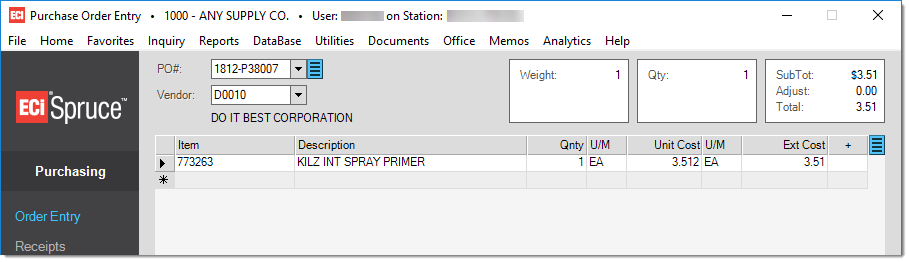
1.Create a purchase order. Items on the purchase order must have positive quantities. Once all items have been entered, press F12 Process.
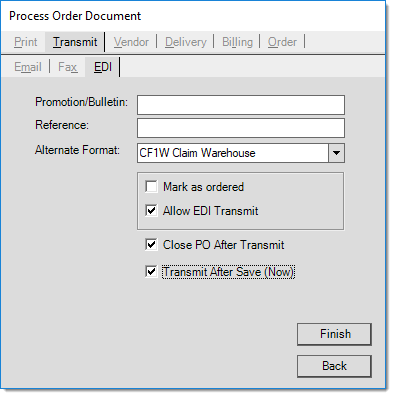
2.On the Process form, select the Transmit/EDI tab.
oIn the "Alternate Format" field, select either CF1W Claim Warehouse or CF1D Claim Drop Ship, depending on the type of claim you need to process.
oUncheck "Mark as Ordered" as you don't want to affect your on-order quantities.
oCheck "Allow EDI Transmit". Although this is not ordered, you want to be able to send it to Do It Best.
oCheck "Close PO After Transmit".
o"Transmit After Save (Now)" is optional. It can be transmitted now, or later through Vendor EDI.
oClick "Finish"
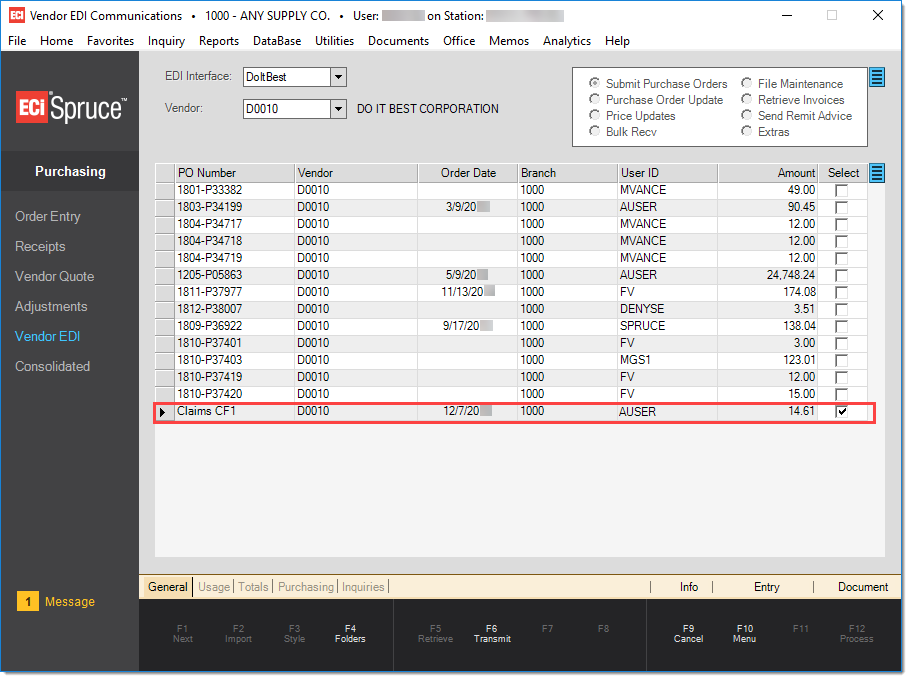
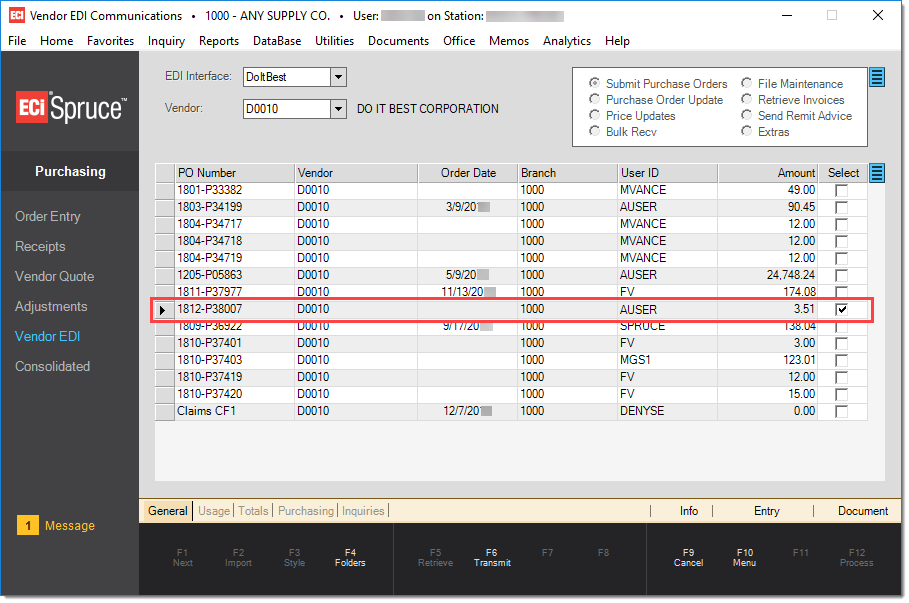
3.If you did not select "Transmit After Save (Now)", navigate to Purchasing > Vendor EDI. Select the Submit Purchase Orders option, choose the PO Number you need to submit.
Sending an Automated Claim
Enhanced returns must be turned on for this method to work (See Item Returns).
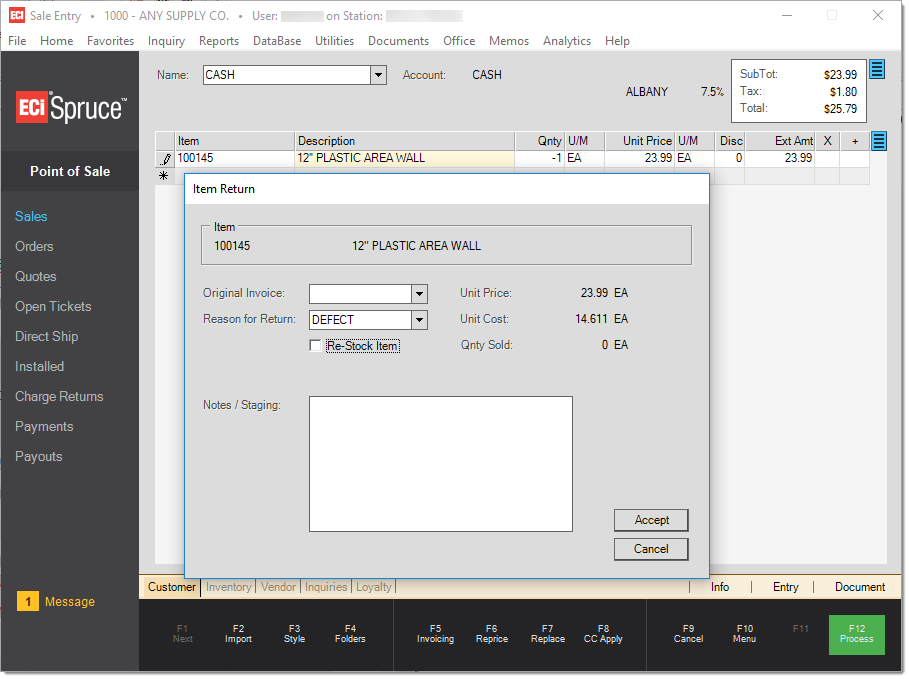
1.At Point of Sale > Sales, return an item. This is done by entering a negative quantity and hitting the Enter key. The Item Return form will appear. Select the reason for the return, and whether the item will be re-stocked or not. Press Accept and then F12 Process.
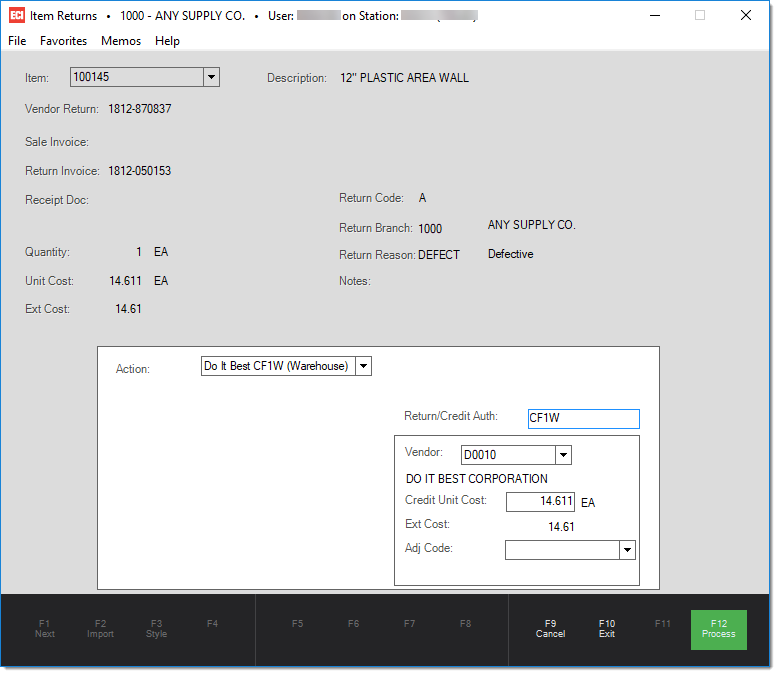
2.Navigate to Inventory > Utilities > Item Returns. As part of your periodic process of returns, items that have the appropriate return code can be claimed for credit.
oSelect the item in the Item field.
oSelect the type of claim in the Action field.
oPress F12 Process.
3.Go to Purchasing > Vendor EDI. Select the Submit Purchase Orders option, choose the claim you need to submit.