Retrieving Hotsheets and Promotions from ACE Hardware Corporation
When you download and review the ACE Hotsheets, you may also notice that they contain ACE promotion information. As part of the Hotsheet download process, we also collect ACE promotion files (both the header and detail), which include changes to inventory pricing promotions (both added and deleted). The application adds this promotion information to the ACE Hotsheets so it can process it together. Combining these resources into one process is more efficient.
After you enable the PSN parameter settings and the branch and vendor settings are complete, you can send and retrieve vendor information using largely the same process as before. For the PSN-based transmissions, we have added a Date field to allow you to specify the date for these EDI requests. When you select a date in this field, the vendor sends the records you requested for the previous day.
Note: If the vendor sent you the current day’s records, any records that change after the time you send the request would not reach you; therefore, they send the complete records for the previous day.
It may be possible to retrieve data from another day. Contact your vendor’s customer services team to see if they can respool your data so you can download it again.
To retrieve ACE Hotsheets and Promotions using the PSN:
1. From the Main Menu, choose Purchasing and from the Left Menu choose Vendor EDI. The Vendor EDI Communications form displays.
2. From the EDI Interface list, choose the vendor’s name, in this case, ACE.
3. From the Vendor list, choose the vendor’s vendor ID, in this case, ACE.
4. Choose the Hotsheets button in the list.
5. In the Date field, leave the previous date selected.
6. Select the Include Items With No Price Change check box if you want to include all items or leave this check box blank to retrieve items with price changes only.
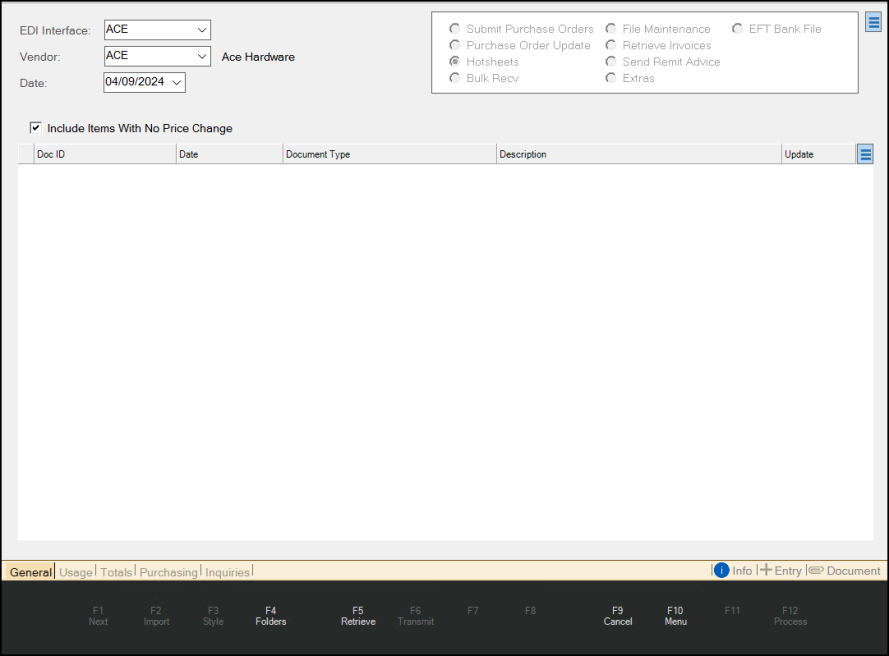
Vendor EDI Communications with ACE PSN Entries
7. Choose the Retrieve (F5) key. The Retrieve File confirmation message displays:
-
Scripting is enabled, meaning the software may connect externally to your vendor when you press OK. Press OK to Continue Retrieving.
8. Choose OK to continue. The Open box displays.
9. In the Open box, choose a folder for the new file and enter a file name in the Filename field. Then, choose Open. The application retrieves the hotsheets and promotions that are available.
The application retrieves the file(s) you requested and saves it/them to the folder you specified. A confirmation message displays when the retrieval process is complete. The application also reports if the retrieved file(s) contain(s) no new data.
10. After you review this downloaded data, choose Process (F12) to apply those prices to your inventory.
Experiencing Automation Issues? If you are experiencing ACE Hotsheet automation issues, which also affect your access to promotional and price update records, there is a manual process for applying these price changes to the appropriate inventory records. Follow the instructions in the Apply Price/Sale Changes for that date, to apply the price changes for the registers, tags, and item records that are affected.
Until you complete Apply Price/Sale Changes process for that date to those records, they may still show your old retail prices even though the hotsheet/price update/promotional pricing was downloaded and processed in Vendor EDI.
Which Effective Date Should You Use: The application does not show you, by itself, every date Ace may have spooled files for your account. If you do not know which date(s) apply to the price or promotional data, please contact Ace to confirm the correct spool or effective dates for your store, or ask Ace to respool your hotsheet data if necessary. After you know the right date, enter it as the Effective Date and choose Retrieve (F5). You can retrieve these records as many times as you need to—and apply the pricing as often as necessary.
See Also:
Applying Price Changes Manually
Setting up Automation (ACE)
Setting up Mapping Overrides (ACE)