Understanding the TSYS Cayan Configuration
The following settings are completed by Support or Implementation personnel when you sign up for TSYS Cayan card processing. In the Parameters Settings form, the Credit Card S/W and Debit Card S/W options are enabled and the card Interface has been set to Cayan in the Setup > BankCards tab.
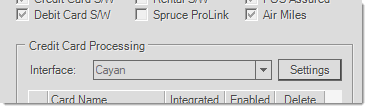
The Cayan Settings box shown below is generally not accessible outside of Support, but we are providing it to ensure you understand the information that is referenced in it.
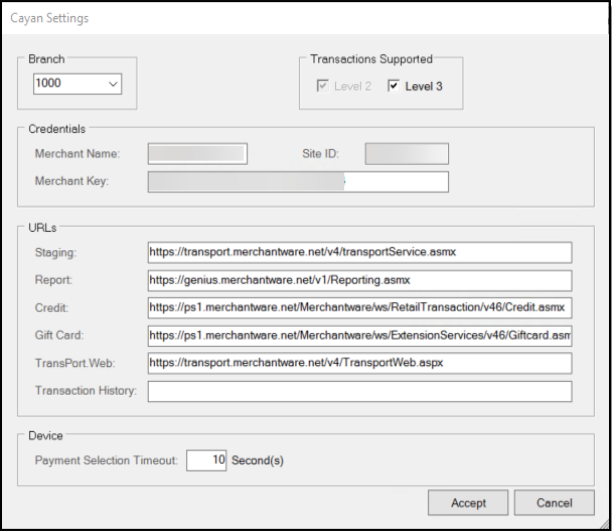
When you set up a firewall and security software settings for your business, the URLs listed for web services will need to be included for the card processing to work. URLs are subject to change at any time. Usually, these changes can and will be made remotely by ECI personnel for you; however, changes might also necessitate security changes on your own network which would be your company's responsibility. In these cases, we will attempt to notify companies of the change in advance via email and/or other means.
Level 2 & Level 3 Processing Supported
The Level 2 & Level 3 processing entries refer to additional information about the transaction which may be optionally sent to the processor. This information, if transmitted, may result in a reduction in transaction fees. Please contact your processor if you have questions.
-
Level 2 data includes the tax amount (if non-zero), customer's PO number (if any), and customer code (the sequence portion of the invoice document number). If no customer PO is associated with the transaction, the document's sequence portion (last six-characters) is sent with the request.
-
Level 3 data includes the Commodity Code, Description, UPC, Unit of Measure, Unit Cost, Discount Amount, Total Amount, Tax Amount, Extended Amount, Debit/Credit, and Net Gross in addition to level 2 data.
Credentials
The Merchant Name, Site ID, and Merchant Key are specific to your business and will vary for each branch (store) location with an account.
URLs
The Staging URL is the web service responsible for authenticating and preparing transactions. The same URL is used for both live and test implementations. This involves retrieving the unique transport key for the transaction from the service after authenticating.
https://transport.merchantware.net/v4/transportService.asmx?op=CreateTransaction
The Report URL is for retrieving the results of a transaction after initiating the transaction via the card device. Communication with the card device (CED) occurs between the staging and reporting steps.
https://genius.merchantware.net/v1/Reporting.asmx
The Credit URL is for post-sale functions such as voids and refunds for credit/debit card payments where the transaction's result token is being used. These operations don't require the original card be present and the card device is not used.
https://ps1.merchantware.net/Merchantware/ws/RetailTransaction/v45/Credit.asmx
The Gift Card URL is similar to the Credit URL but is for voids and refunds for gift cards only. Transactions using this URL don't require the original card and the card device is not used.
https://ps1.merchantware.net/Merchantware/ws/ExtensionServices/v4/Giftcard.asmx
The TransPort.Web URL is for web portal processing that is independent of a card device and may not be supported for all installations.
https://transport.merchantware.net/v4/TransportWeb.aspx
Device
Payment Selection Timeout
This sets the period of time, in seconds, that the device will wait for customer interaction before canceling.
Card Types
Card types should be enabled for the card interface and Point of Sale selection. If you need to manually process card transactions independently of the device, enable at least one additional selection (typically, Other) in the Setup > Bankcards tab of the Parameters form (shown above) so that the selection differs. If additional non-integrated selections are not enabled, Card Type options will not be available at Point of Sale unless Authorization Entry is enabled and an Authorization Code is entered.
Certificates
The software will automatically install a TSYS Cayan security certificate in the user's personal certificate store when TSYS Cayan is enabled. This is necessary for communication between the card device and user (via the software application). If you participate in True Value Quick Credit Card applications, the application may also need the certificate to be installed in the computer's Trusted Root Certificate Store. For remote connections (Remote Desktop or App), the certificate would reside on the computer (server) hosting the connection.
True Value Quick Credit
If your company is a True Value member who will be processing Quick Credit Card Applications, a TSYS Cayan certificate is required for any application servers or clients that will process applications. This will be installed automatically if needed; however, it can be manually added by following the instructions at the following link:
https://TSYS Cayan.com/developers/knowledge-base/genius-TSYS Cayan-root-certificate-installation
For our Cloud-hosted customers, you don't have to install the certificate as your application connections actually are running on the server, not locally.
Quick Credit Applications are processed by Alliance Data. For test or production testing, you must contact Alliance Data with the WAN (Wide Area Network) address being used so that they can "white list" the address to allow communication. There are two (2) production application servers: Dallas, TX and Columbus, OH. A test server is also provided.
Additional True Value Quick Credit Application settings can be found on the Setup, EDI, and True Value Rewards tab (this tab is only accessible by support personnel).
Updates to Cayan Device Endpoints Keep You in Sync
As Global Payments Integrated continues to update the MerchantWare Credit and Gift Card APIs, we will continue to help you update your Cayan system settings to stay in sync. This helps you stay competitive with other businesses and improves security of your Cayan-based transactions. The release updates your end points and URL settings for your installed Cayan Point of Sale equipment. These updates do not require changes to your device or station settings.
We have updated the business logic used to process your transactions to take advantage of the updated tokenized Card on File features. This update provides better encryption for your customer’s credit card data so that hackers cannot decode it.
As before, when an account customer uses a credit card to pay for a transaction, the application prompts Cashiers to add the card token to the customer’s account:
-
If the customer responds Yes, the application encrypts their card information to a secure token to make the card data available for future account or Point of Sale payments.
-
If the customer responds No, the application processes the current transaction only and does not encrypt the card data, even if the customer chose to save it before.
We tested the Gift Card API to ensure that you can still process stored value gift card activations and updates and display current gift card balances on demand.
Reviewing the MerchantWare Settings
ECI Implementation or Support team members set up your MerchantWare settings for you as part of your upgrade process. Administrative users can see the new settings in the system parameters. These settings allow you to use Card On File-saved data for Sales, Orders,
To review the MerchantWare settings in Cayan Credit Card Processing:
1. From the Main Menu, choose Maintenance > Database > Parameters to display the Parameter Settings form.
2. Choose the Setup > BankCards tab to display the Credit Card Processing options.
3. From the Interface list, choose the Settings button to display the Cayan Settings options.
4. From the Branch list, choose the first branch that will use the Cayan settings. The branch settings display:
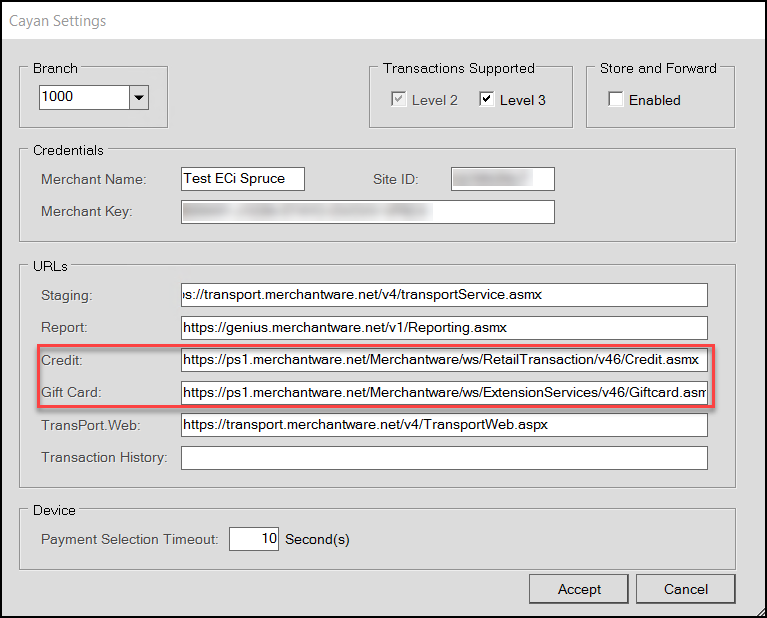
These settings should display for each branch that uses the Cayan devices. The application will use these values to process credit card and gift card payments when you use Cayan devices.
5. Choose Accept to close the box.
6. Choose Process (F12) to save the changes to the database.
7. Repeat Steps 4 - 6 to view the settings for each branch that uses Cayan devices.
Messaging Improved when Cayan Merchant Key Errors Occur
As we work with our Cayan partners to improve your payment processing experience, we have added new message that displays when there is a problem with the Cayan Merchant Key setting. If the Merchant Key is not set correctly, Cashiers are notified using a transaction message that includes:
-
Invalid Credentials
This message can display during the following Point of Sale or Payment entry processes using Cayan devices:
-
During the Payment process, the message is: Failed! Staging – Invalid login credentials
-
Refund process, the message is: Failed! Refund: Invalid Credentials
-
Payment using Card On File, the message is: Failed! Staging – Invalid login credentials
-
Refund using Card On File, the message is: Failed! Refund: Invalid Credentials, and
-
Invoice Reversals, the message is: Failed! Void: Invalid Credentials.