Training Portal > Webinar Schedules
We are excited to announce that all
This portal is now your primary destination to
We look forward to seeing you in our upcoming classes!
Registering for the Training Portal
Before you can sign in, you must register to establish your credentials in the Training Portal:
1. Go the Training Portal Login Page.
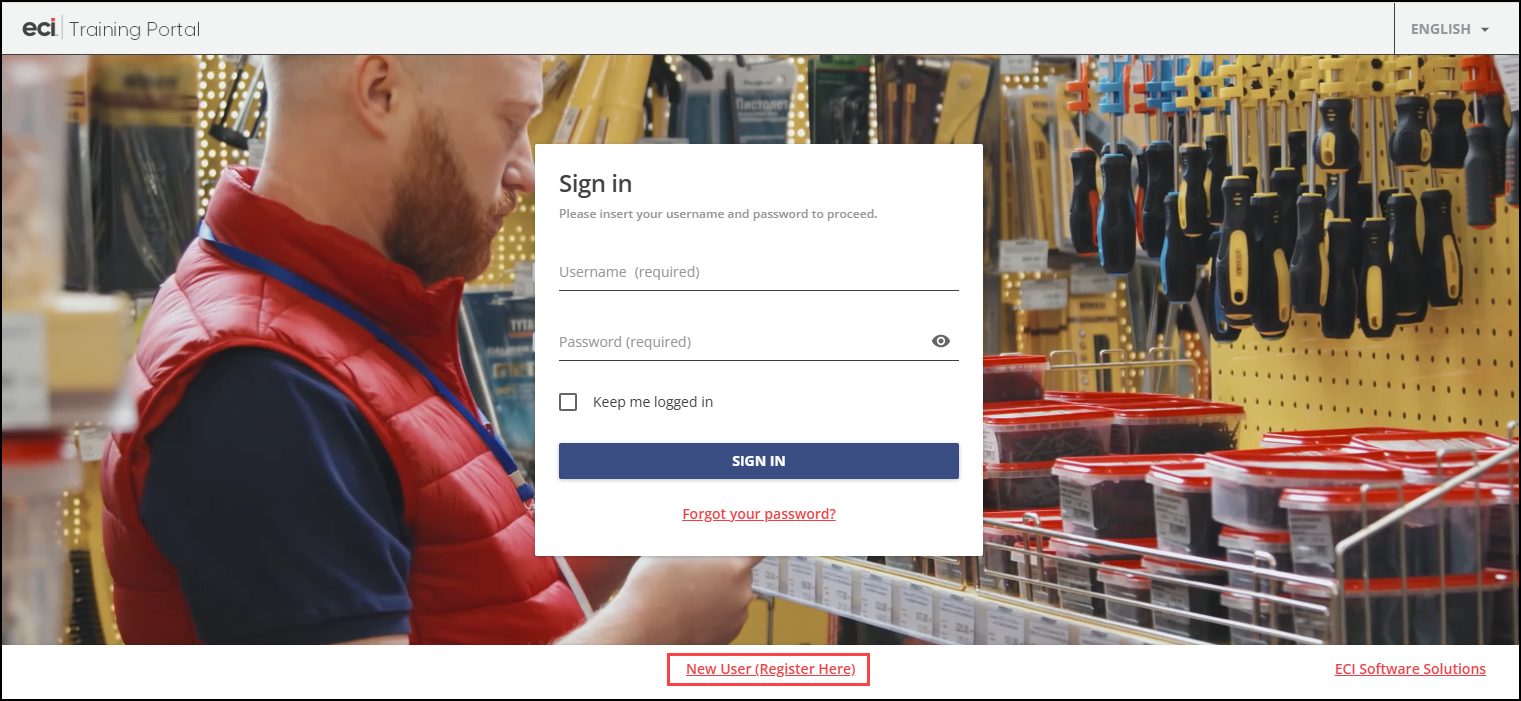
2. Click the New User (Register Here) link to display the Training Portal Registration form. Include the following information in your this form:
-
First Name and Last Name
-
Email Address (each registrant must have a unique email address)
-
Username (same as the email address)
-
Account Number (NetSuite ID)
Note: You can leave this field blank if you do not know this ID. -
Company Name (Account Name)
-
Product your Company Uses (Spruce or RockSolid MAX)
3. When you complete these entries, choose Submit.
After you complete your registration, you will receive a welcome email containing your log in credentials. Please allow a full business day for ECI to compete this process.
We will add additional instructions for accessing training materials to this page shortly.
Accessing the Training Portal Resources
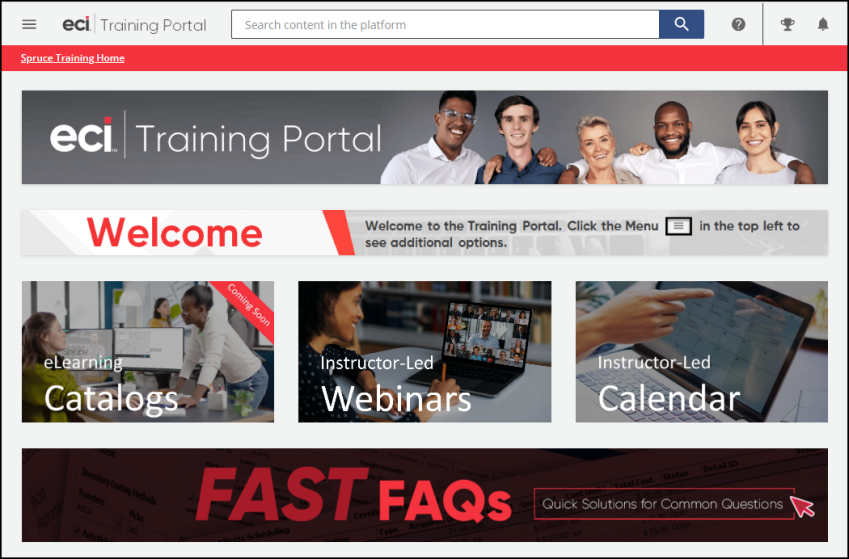
When you access the Training Portal, the options you see will depend upon your product needs.
Enrolling in an Instructor-Led Webinar
Webinar courses are completely free and pre-registration is required. The webinar class size is limited to provide better service. There are two options for enrolling in an instructor-led webinar in the Training Portal.
-
You can search for a course using the Instructor -Led Webinars catalog, or
-
You can review the Instructor-Led Calendar to see the courses that have already been scheduled.
Using Search to Find a Webinar
To enroll in an online webinar by searching for a particular course:
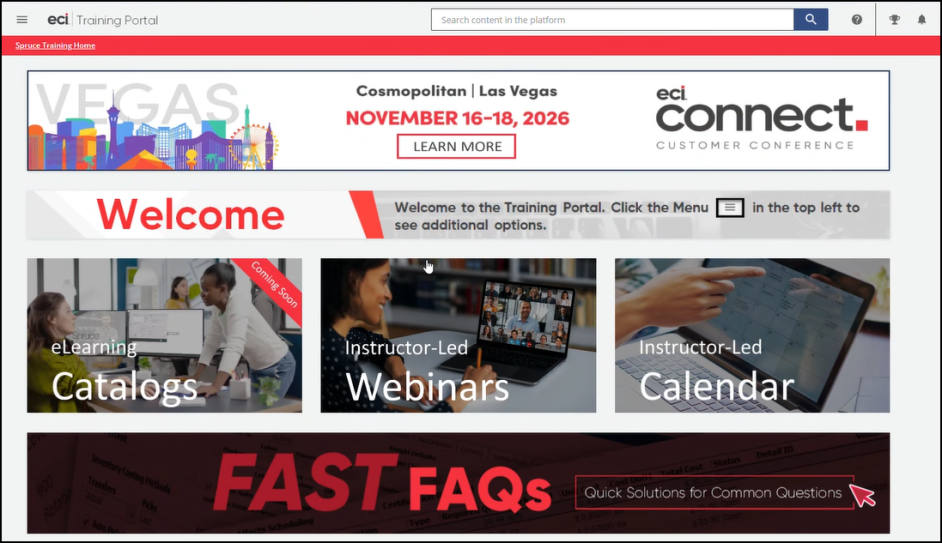
1. On the Training Portal menu, click the Instructor-led Webinars option to display the list of webinar events. The catalog of instructor -led webinars displays.
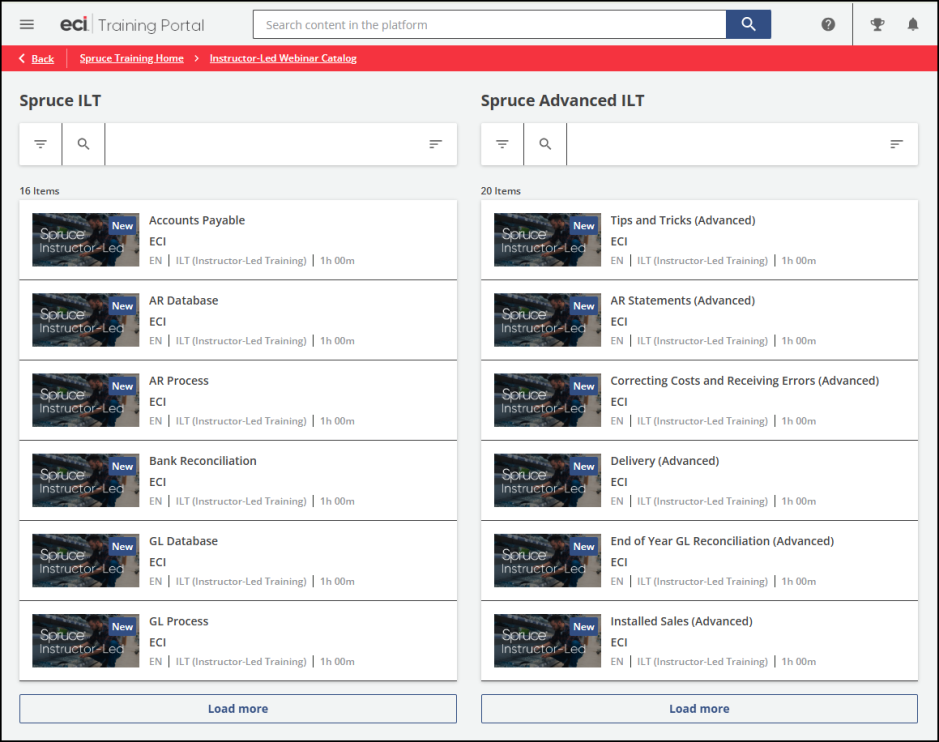
2. In the search fields at the top of the page, click the Search  icon, enter the type of webinar you are looking for, and press Enter. The webinars that match the criteria you entered display.
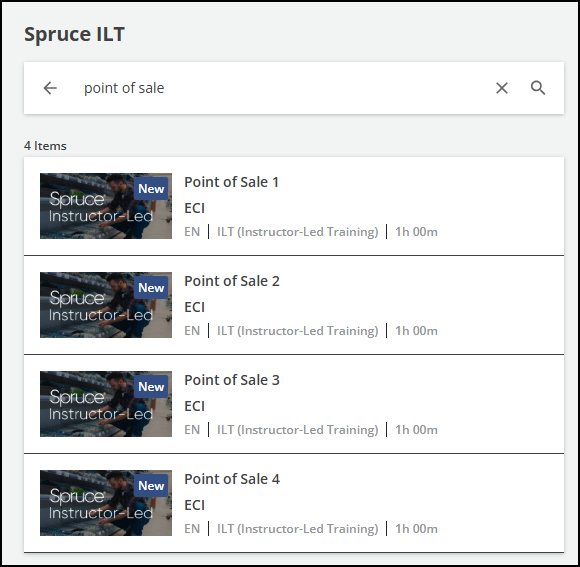
3. Click a webinar in the list to learn more about the course and the dates the course is available.
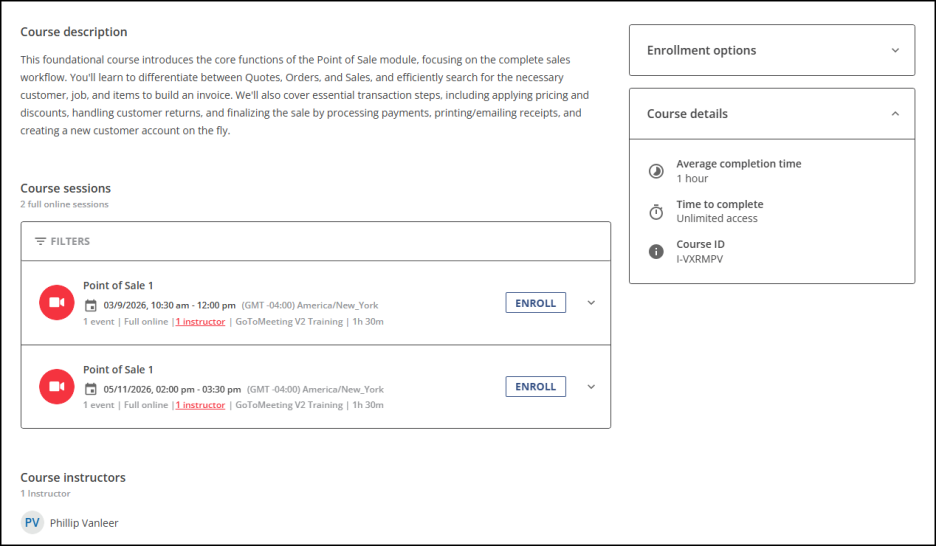
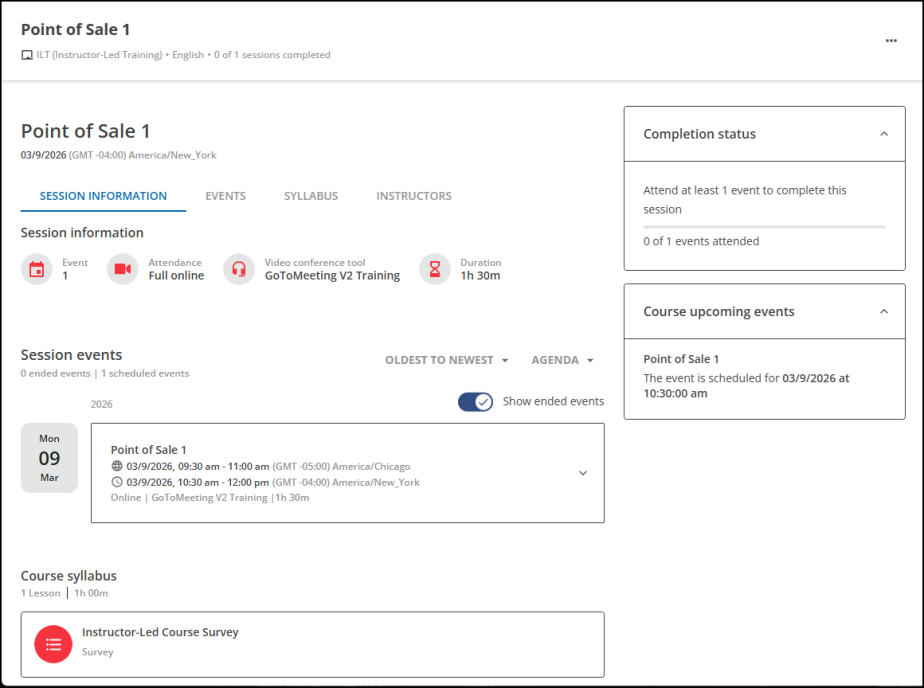
4. Review the webinar dates and click Enroll to register for the course that works best for you. The Enrollment information displays.
Using the Calendar to Find a Webinar
To enroll in an online webinar by going through the calendar:
1. On the Training Portal menu, click the Instructor-led Calendar option to display the scheduled webinars on a calendar. The current month of instructor -led webinars displays. The current date has a beige background.
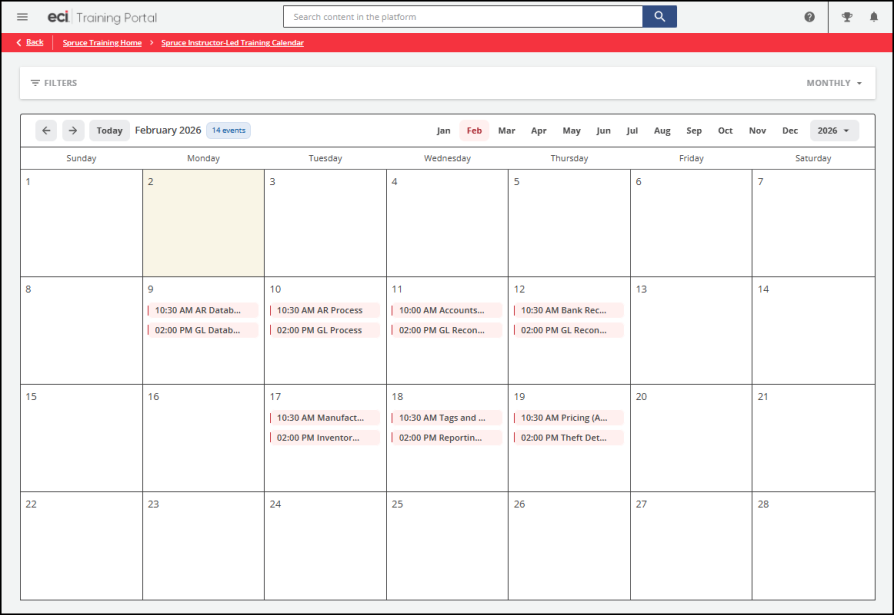
2. Look through the calendar to find the webinar you would like to attend, and click the webinar link on the date.
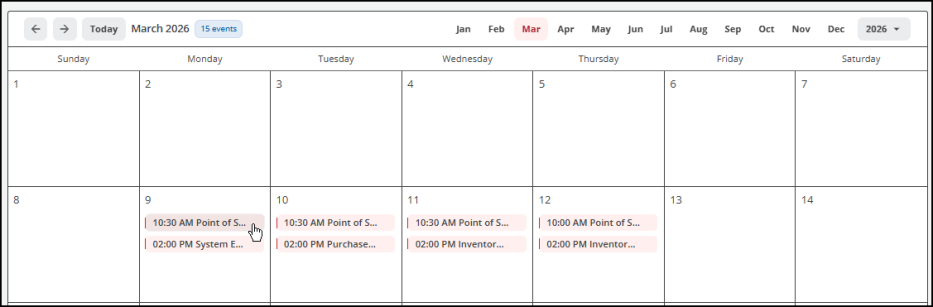
The webinar overview box displays:
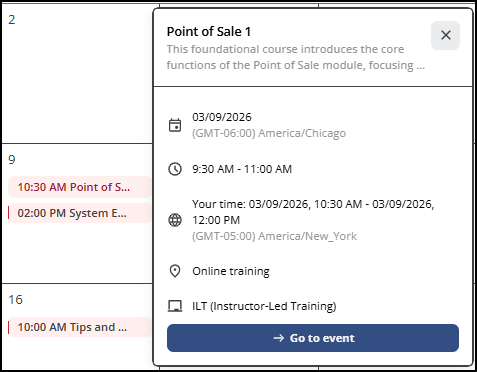
3. Click the Go to event button to review the webinar details.
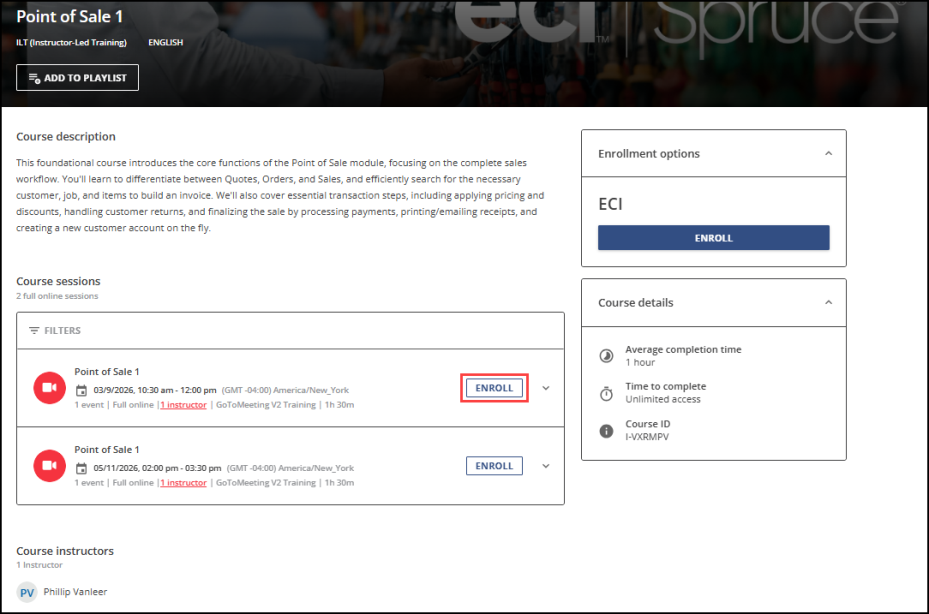
4. Click the Enroll button beside the webinar you want to attend. The confirmation page displays.