Vendor EDI > Bulk Receive (Bulk Apply) Process
The Vendor EDI transaction, Bulk Receive bulk recv, is available to X12-enabled vendors from the Main Menu > Purchasing > Vendor EDI form. This process retrieves all data that the vendor provides and processes it at one time and for all branch locations.
This transaction is only provided for some EDI interfaces: LMC,
After you select the EDI Interface (X12) and the Vendor settings (for the vendor whose records you want to process), choose the Bulk Recv option.
Then choose the Retrieve (F5) function to obtain the data from your vendor.
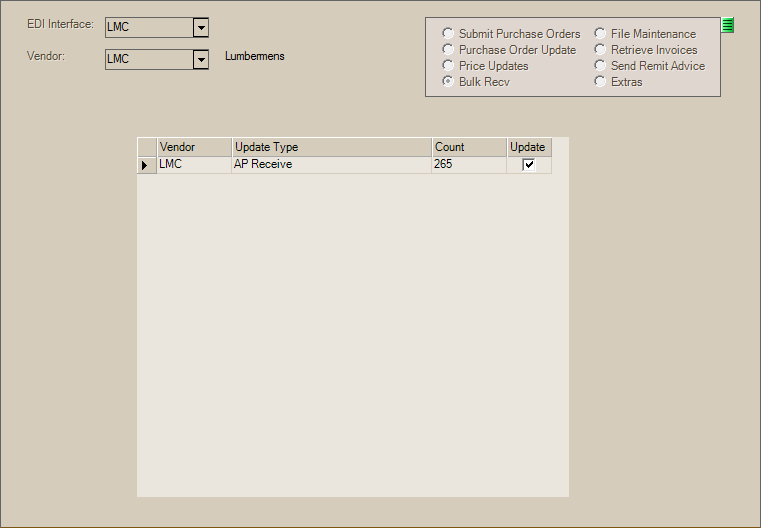
The actual operation of data retrieval can vary somewhat by vendor. Some vendors allow direct connections to their data services, others don't. In some cases, we must use third-party software products to assist with communication. This topic does not specifically discuss the retrieval process and is limited to processing after data is successfully retrieved. For large quantities of data, a progress bar may be displayed.
Once retrieval and processing of the data has completed, the data grid area will list the vendor, update type, and document count. Use the "Preview Data" option (discussed below) to view details regarding the contents of the particular update.
For LMC and LBM Advantage, the only update type is likely going to be "AP Receive." This function is limited to creating billing invoices and credits for Payables processing. With Chalifour and X12 data, a variety of documents may be listed. Each type will have it's own particular.
Bulk receiving can be automated. This is enabled from the "automation" dialog available from the Branch Setup (Main Menu > Maintenance > Database > Branches) form's EDI folder tab (via the context Menu Marker  ). Typically, the bulk apply is run hourly.
Bulk Receive Process Update (Version 32.0)
We have improved the Bulk Receive EDI transaction to clarify the data types we are updating. Since X12 is a standardized format used by multiple providers for data exchange, many document type formats may be transmitted at once. Commonly, for Spruce businesses, there are two data types that are the most common:
-
810 AP Invoice Data, and
-
856 Purchase Order Updates
In some cases, your company may receive both documents for the same purchase.
When previewing Bulk Receive details, we indicate the document type for each preview row and only display the preview for the rows matching the summary (parent) row you select. In the past, clicking any row would list all documents, including those that didn’t match the Bulk Apply summary row you clicked.
It’s important to understand that an 810 AP Document will also update any associated Purchase Order, so there’s no need to process both for the same order. Processing the PO update alone updates the PO with the vendor’s shipped quantities and will not create any Payables invoice for the purchase. By default, when PO updates are selected, AP updates are not.
In addition to displaying additional information in the preview, we now update the Preview list data based on selections in the summary (Bulk Receive) data grid. The Update check box will display either checked, unchecked, or an intermediate state (in cases where only some matching preview documents are selected for update). Previously, the Summary check boxes didn’t necessarily correspond to the preview selections.
Finally, when processing, the application displays a warning when different update types are selected for the same Purchase Order document. This can be elevated to an error to prevent duplicate processing if needed.
Preview Data (AP Receive)
It's generally a good idea, and sometimes necessary, to preview the data for the bulk receive by double-clicking the row header column (the "blocks" along the left-hand side of the data grid). This displays all of the EDI documents included in the bulk apply file. Preview information is available for other document types; however, those are not discussed here. For information about the previews for other types, please see the Vendor EDI documentation pertaining to those types for reference ("Purchase Order Update," for example).
In the case of our example (LMC), the bulk apply attempts to match the invoice data to existing purchase orders (or inventory receipts linked to a purchase order). Matching is done on either the full document identifier or just the second-half or "sequence" portion.
If a purchase order match isn't located, you can manually link the row to an existing or new purchase order (for the current branch only). To do this, click in the "Doc ID' column cell for the row that reports an error. Error messages are listed in the "Description" column. For example, "PO Not Found. Ref: 123456" indicates that no purchase order was found matching the sequence or document identifier "123456." If you plan on using the Bulk Receive and have multiple branches, it's probably a good idea to assign branch prefixes to your purchase orders to make orders for each branch easier to identify.
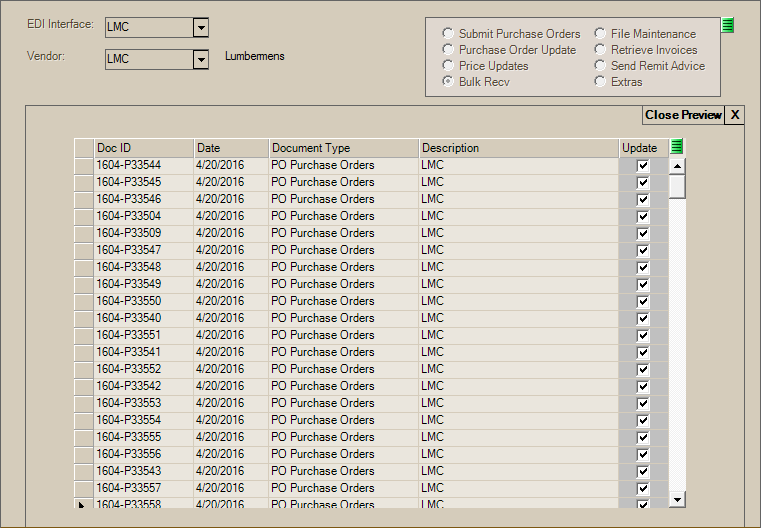
Vendor EDI: Bulk Recv, Preview (Initial)
If you attempt to process either from the summary or preview (above), and validation fails, a task list with error and warning messages will be provided. Clicking on the task list can alter the preview's data grid replacing the "update" column with two other columns: "PO Update" and "AP." These can be used to selectively decide which data that the EDI document updates. PO Update, if selected, attempts to update open purchase orders with EDI quantities and costs. The "AP" check boxes indicate whether or not a payable (invoice or credit) should be generated from the data.
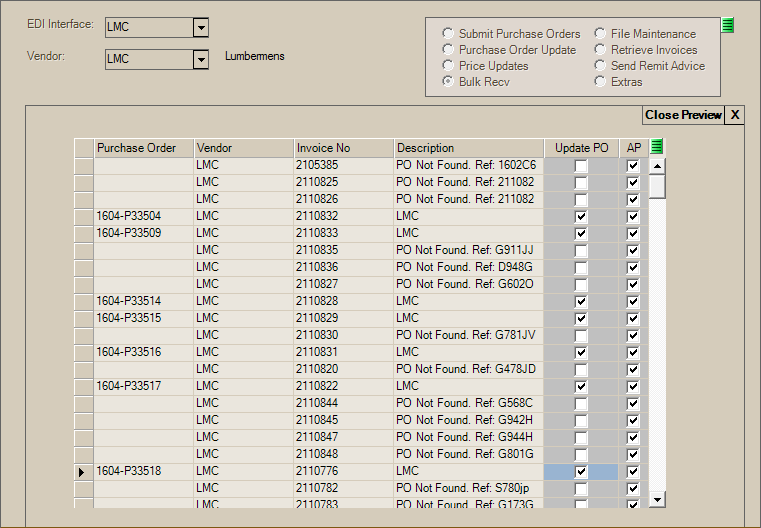
Vendor EDI: Bulk Receive, Preview Data
In the case of Bulk Receiving, there are actually two layers or levels of preview detail. The first layer (above) lists the EDI documents that were located based on the information in the data. For "AP Receive" type data, these can be either received or open purchase orders. Any payables generated from an "open" (not received) PO will be automatically placed on hold.
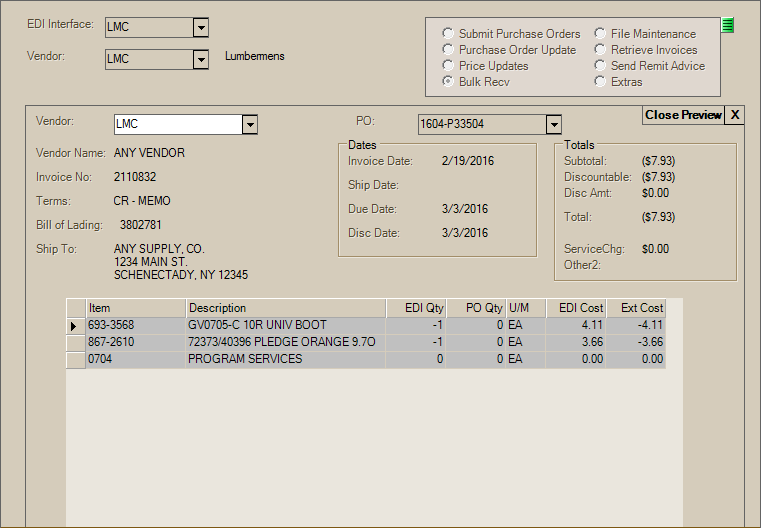
Vendor EDI: Bulk Recv, Preview with Document Details
Processing
Mark the EDI documents that should be updated using the check boxes  under the update column in the grid (or the PO Update and AP columns). To update the selected purchase orders with the data and/or generate payables invoices, choose Process (F12). Processing time can vary based upon the amount of data. Once the "processing complete" message appears (this overlays the function key area at the bottom of the window), the purchase orders have been updated and any payables have been generated.
When processing an "AP Receive" file, it's important to point out that updating any open purchase orders can be optional and may or may not be possible based on the contents of the data received.
Only bulk receiving that involves "PO Update" type documents are really meant for updating purchase orders with EDI quantities and costs.
Payables invoices generated via EDI processing display the “EDI Created” check box as checked. The Status for new invoices is either “Open” or “Hold.” An invoice is put on “Hold” for any of the following reasons:
•No matching Purchase Order was found or assigned.
•The Purchase Order exists but hasn’t been received (the status will also show “No PO” in this case)
•The dollar amount of the invoice differs from the receipt by a set threshold dollar amount (if used).*
•The percentage difference between the invoice and receipt exceeds the threshold percentage (if used).*
*Two threshold values may be set in Parameters (Maintenance > Database > Parameters > Payables). These threshold values are provided so that you don’t have to individually examine invoices that may be off by only small amounts. One threshold is based on a dollar value and another is provided using a percentage. Your company can use either, neither, or both. The percentage threshold is available in release 11.3.0 and later.
Post Processing
The only post-processing would be the review and updating of any Hold invoices generated by processing. When payments for invoices are disbursed, you can transmit "remittance advice" documents to the vendor at that time (from the Process (F12) form in the Disbursements transaction in Payables). If you forget to do this at time of disbursement, the "Send Remit Advice" option in the Vendor EDI transaction can be used to transmit payment data to the vendor.