What's New: Modernizing Spruce and RockSolid MAX FAQ
At ECI, we are making meaningful changes to how Spruce and RockSolid MAX work — changes that remove longstanding technical friction, improve everyday performance, and give you more flexibility and control over your business.
As we prepare for the future, we are implementing Custom Pairing, to prepare your workstations for the migration from the IBM Cloud platform to Amazon Web Services (AWS). This move will allow your computers to run the applications faster, more reliably and will scale better during busy workdays.
This change will allow your devices, including printers, cash drawers, POS terminals, and card readers to operate locally rather than through a cloud server. Your data will remain secure in the cloud, but Rapid Entry/Single Sign-On will give you more control over the processes you run every day.
We know that you must have questions about the way these changes are going to roll out and how they will affect your day to day business. This section will address these questions so you know we are working to make these changes as seamless as possible. We will add to it over time to address any new issues you have. You can contact us at any time using the DocsHelp_LBMH@ecisolutions.com address and we will post them here with our answers.
Custom Pairing FAQ
The setup effort for the Remote Client Custom Pairing is light, because it largely installs in the background and causes no downtime. Here are some questions that our beta partners have asked and we have answered:
Is Remote Client manually installed on every workstation?
Yes. The Remote Client utility has always been installed on every workstation. The new Custom Pairing process ensures each workstation is updated regularly and automatically synced with your application version.
Will the workstation be disconnected during installation?
No. Updates occur in the background, typically during off hours. You are never disconnected from the cloud.
Can I use RockSolid MAX while installing or updating Remote Client?
Yes. There is no loss of connectivity during this process.
What changes after the Remote Client upgrade is installed?
After the upgrade is installed and implemented, this Remote Client  icon displays in the left menu. If this icon displays
  instead, follow the steps here to complete the pairing process on each workstation that displays it. When the green icon version displays, the Remote Client can update and upgrade your system each day.
After implementing this process, will I have to update every PC when a new version is released manually?
No. After the Remote Client is upgraded, all updates are delivered automatically to each workstation through the Remote Client.
Does a PC need to be left on overnight to receive updates?
No. Remote Client will upgrade the station whenever the user logs into the system next. Remote Client checks for updates overnight by default at 2:00 a.m. each day. We recommend you leave the Automatic Update setting as it is.
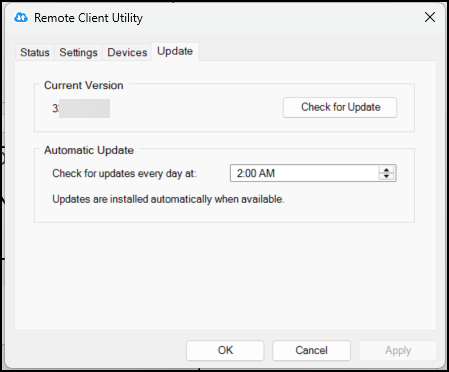
Remote Client Utility > Update Tab
Rapid Entry/Single Sign-On (SSO) FAQs
Here are some questions you may be asking about the Rapid Entry/Single Sign-On process.
What is the Setup Effort for Rapid Entry?
Moderate. There is a one-time change to your login and desktop icon, and the branch setup required to begin. Rapid Entry replaces the RDP shortcut on your desktop with a new ECI sign-in icon, turned on one branch at a time. The login screen has a newer look but works exactly the same way. Your previous RDP shortcut is preserved in a backup folder and not deleted, in case you want to return to it.
Will my login look different?
Yes. It will have a newer look but function the same.
Will my icon look different?
Yes. It will say ECI.

My RDP launch icons are missing from my desktop! Can I get them back?
Yes, we have stored these icons in a backup folder.
What is the benefit of Rapid Entry?
Rapid Entry/Single Sign-On introduces a global sign-in that gives you more flexibility to route your connection behind the scenes — so when the back-end infrastructure moves, the change is seamless to you. This process removes the dependency on individual RDP sessions, and your day-to-day workflow does not change.