The updates listed in this utility are all created from the Price Updates transaction on the Inventory menu.
After these price updates are created, you use this utility to apply the sale prices to the appropriate branches.
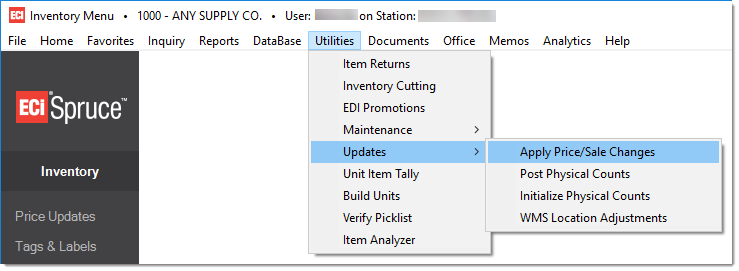
You can access this utility from the Main Menu by selecting Inventory > Utilities > Updates > Apply Price /Sales Changes.
Applying a price change finalizes the price changes and updates each affected item with the pricing and sale dates (when applicable). Applied sale prices are not necessarily "effective" on the date they are applied; however, price updates change prices immediately once applied.
Here are some important points to understand regarding applying price updates and sale pricing:
•Even if applied, sale prices don't take effect until the date listed. "Apply" really just updates the Item database with the pricing and dates.
•Ending dates for sale pricing are now provided for reference. Sales with the same beginning date but different ending dates can now be applied individually.
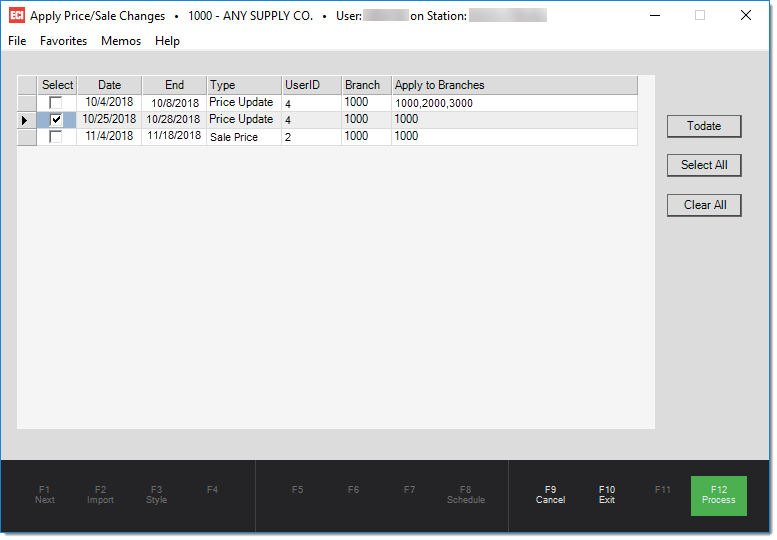
Enable the check box beside each price update you want to apply to the item inventory.
Use the Todate button to designate a date up to which all price/sale updates will be saved.
Use Select All or Clear All to quickly select or clear the selections of the entries in the entire grid.
When you are ready to process the price updates for the selected branches, press or select Process (F12). This finalizes the selected price updates or sale pricing for the selected dates. There is no undo after the database is updated.
Use Cancel (F9) to clear any selections and refresh the form back to its original settings.
Use the Exit (F10) function to close the form window without processing.
What if I apply price changes and find a mistake afterward?
In the case of price updates, you can modify the price directly in the Item database. If multiple items or branches are involved, use the Inventory > Price Updates activity to do this more easily.
With sale pricing, users can't modify an applied sale price from the Item Maintenance form (Item database), so it's necessary to use the Sale Flyer Item Maintenance form. The Price Updates area can be used to make changes before a sale or price change is applied.
Items can maintain up to two sale prices at any given time, including two start dates and two end dates. Because of this, the Apply program must decide which pricing to update or replace when more than two sale prices are saved. An item's sale pricing can be viewed under the item's Branch settings, Pricing tab in either Item Maintenance (database) or Item Inquiry.
Here are a few situations that can occur with sale pricing as well as some solutions:
•If a sale price is set too low or too high or the dates are incorrect, use the new Sale Flyer Item Maintenance form to correct the price and/or dates.
•If an item is put on sale and shouldn't have been, the sale can also be removed by selecting the item in the Sale Flyer Item Maintenance form, clearing the dates, and choosing the Process (F12) function. This removes the sale for the selected item only.
When an item already has sale pricing applied, how does the application decide which sale pricing to replace?Each item can have up to two concurrent sale prices at any given time. If additional sales are applied to an item that already has at least one current sale price applied, the application uses the following logic to determine which sale price to update or replace:
When an item has no sale pricing, new sale prices are applied to the first sale price level. The application maintains the item's current sale pricing in the InventoryStore database table, including the starting and ending dates for each sale level. |