Code Definitions > Rebates (Product Codes)
In the Inventory > Database > Code Definitions > Rebates tab, you can add new Product Codes that will be used in the Rebate Tracking feature. Once added, the individual vendor records can define the Product Code rebate timing (Monthly or Quarterly) and rebate calculation values. Then, you can add these Product Codes to item records that would be eligible for the rebates (Item Maintenance > Common > Codes > Rebate Product list).
Product Rebate Codes you add here can be associated with one or more vendor (in the Inventory > Database > Vendor > Vendor Maintenance > Rebate tab). Therefore, these Rebate Product Codes may linked to one or more vendor. Rebate Codes are then assigned a percentage as described here.
When your business purchases an item that has an assigned Product Code from that matching vendor, the application calculates the rebate amount based on the percentage designated in the Vendor Maintenance record, which is then added to the GL account journal you have created for rebate tracking.
Adding a Product Code for a Rebate
To add a product code for a vendor rebate:
1. From the Main Menu, choose Inventory > Database > Code Definitions. The Code Maintenance form displays.
2. Choose the Rebates tab.
3. In the Product column, enter up to six characters as the product code.
4. In the Description column of the same row, enter a description (up to 32 characters) for this product code. We recommend that you describe this product code based on the type of item that will receive the rebate. Since the rebates that are associated with the items may have different scheduling and rebate requirements, it is best that this description reflects the item type.
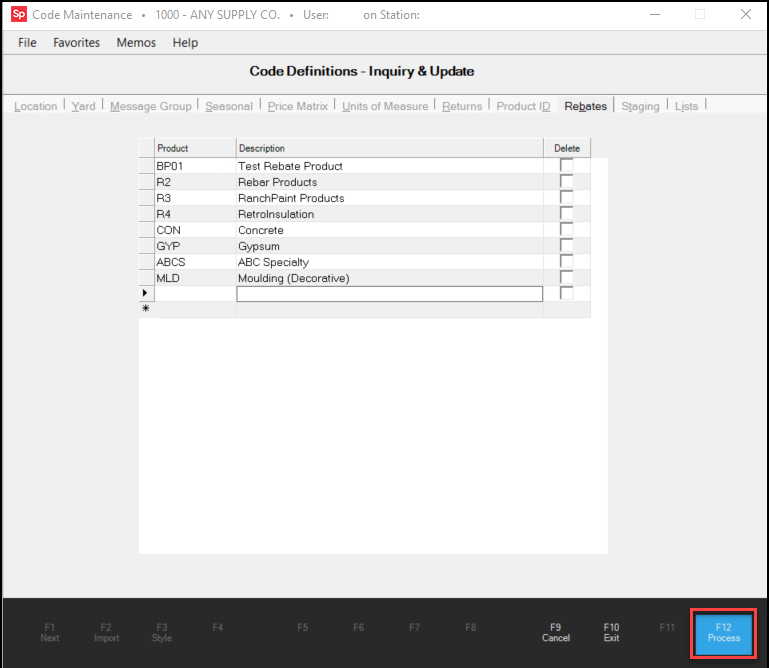
5. When you have completed your entries, choose Process (F12) to save them to the database.
Note: You can only delete Rebate Codes that are not currently assigned to items or vendors.