Vendor Maintenance > Rebates Tab
The Rebates (Alt-R) tab is only visible when the Enable Rebate Tracking parameter has been set from the Purchase Orders tab of the Parameters form (Maintenance > Database > Parameters). To complete the Vendor rebates settings described below, you must also create the Default Rebate Codes in the Purchase Orders Parameters tab, and create the Product Codes as described in the Code Definitions Rebates tab. To track these Rebate Receivables, you should create a Rebate Receivables system journal that is only used for this purpose.
Rebate Tracking is used for managing rebates for purchases that a vendor offers. This feature was designed to address situations where your company purchases products from a vendor at a higher initial cost but then is reimbursed a portion of that cost (margin) later as "rebate."
For example, a vendor may sell their product at or near retail, but once they have been paid they then essentially return your "margin" back to you in the form of a rebate check. Rebates must be designated for the purchase either with the initial Purchase Order document or at time of receiving using the Adjust (F6) function selection named "Rebates."
The term "rebate" is used loosely. Some buying groups/co-ops may pay smaller "rebates" as some percentage of your company's total purchases over a period of time (monthly, quarterly, yearly, etc.). These aren't necessarily linked with a particular type of product. For this reason, smaller rebates based on overall purchases are not really the intended use of the feature; however, it is still possible to link these types of payments to a rebate code. In these cases, the rebates would probably not be set to adjust costs.
Creating a Vendor Rebate Entry for Product Codes
When you have completed the pre-requisites for this process (Rebate Receivables system journal, the rebate-specific Purchase Order parameter settings, and the Product Code settings) described above, you are ready to create the Vendor Rebate Entry.
1. From the Main Menu, choose Purchasing > Database > Vendor. The Vendor Maintenance form displays.
2. Choose the Rebates tab and complete the entries below. All entries are required:
-
Default Rebate Code (M)
From this list, choose the default monthly rebate code you want to apply to the selected vendor purchases. -
Default Rebate Code (Q)
From this list, choose the default quarterly rebate code you want to apply to the selected vendor purchases.
3. In the data grid, add the rebate records for each product you purchase from this vendor that receives rebates and add the rebate percentage in the last column.
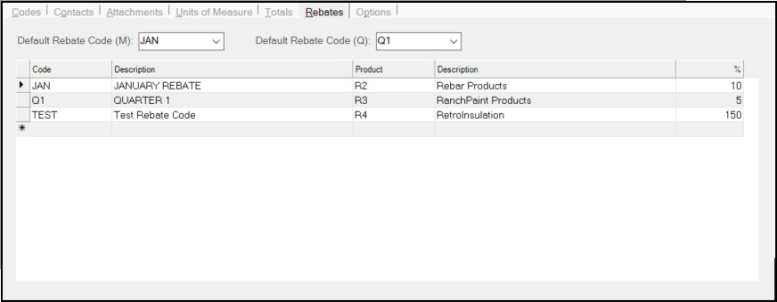
Only rebate codes combinations defined in the grid area will be available for selection in the Purchasing area. Any default rebate code (optional) should therefore be one of the rebate codes found in the grid area. Each vendor Rebate Code entered in the grid area must be assigned a Product Rebate Code as well as a percentage (which may not be zero or a negative value).
-
Code
In this column enter the Monthly or Quarterly code that is applicable to the product you are adding.
The Description field updates to show the rebate description. -
Product
In this column, enter the product code that the monthly or quarterly code applies to for this rebate entry.
The Description field updates to reflect the product description. -
%
In this column, enter the rebate percentage applicable to this product for this rebate period.
4. Repeat step 3 for each product associated with this vendor that you receive purchasing rebates for.
5. When you have completed the rebate entries for this vendor, choose Process (F12) to save the settings.
Understanding the Rebate Codes
You can add as many unique combinations of monthly and quarterly rebates with product codes as needed. The same rebate code and product code cannot be specified more than once. The same product code can be assigned once to a monthly (M) code and once to a quarterly code (Q). Each can have different percentages in this case. Default codes are optional. If default codes are assigned, they are automatically applied during purchasing unless the user modifies them at that time (using the Adjust (F6), Rebates option).
For an overview of the Rebate Tracking feature, please refer to the topic Rebate Tracking under the Special Topics section.
Default Rebate Code (M)
This drop down selection control lists all the monthly (M) rebate codes as defined on the Purchase Orders tab of the Parameters form. Only choose a default code if you always want purchases to automatically be associated with the selected rebate code.
Default Rebate Code (Q)
This drop down selection control lists all the quarterly (Q) rebate codes as defined on the Purchase Orders tab of the Parameters form. Only choose a default code if you always want purchases to automatically be associated with the selected rebate code.
Handling Split Percentage CalculationsIt's important to point out that vendors who offer both monthly and quarterly rebates might not calculate both rebates as a direct percentage of the total eligible. Instead, vendors might only calculate the quarterly rebate on the amount remaining after any monthly rebate has been already deducted. The application calculates all rebate percentages using the total extended amounts, not on the remaining. If your vendor uses a "split" percentage, you may have to calculate the real or net percentage that the quarterly rebate really represents. Here's a specific example. Our vendor offers two levels of rebates on insulation. The first rebate (monthly) is 64.3% of the amount eligible for rebate (adders are not considered). This same vendor also offers another quarterly rebate on insulation with a rate of 20.8%; however, this percentage is based on the amount remaining after deducting the first rebate not the total of eligible purchases. Due to this, the percentage assigned to the quarterly rebate cannot be 20.8% and must be adjusted to match the real or net percentage that would be applied on the amount remaining after the first rebate is applied. $ 3,494.31 (Amount Eligible) ($ 2,224.37) 64.3% (Monthly Rebate Rate) $ 1,234.99 (Remaining or 35.7% of Total Eligible) ($ 256.88) 20.8% of Remaining (Quarterly Rebate Rate after Monthly) The total rebate at this point is $ 2,481.25 (71% of the total amount Eligible) Given this, we can calculate the quarterly rebate's net percentage by taking the original percentage 20.8% and adjusting it by the "remaining" percentage after deducting the monthly amount (100.0 - 64.3 = 35.7). 20.800 Our adjusted or "net" percentage is then 7.2456%. This is the figure we'd assign to the quarterly rebate code - product code combination in Vendor Maintenance rather than the original 20.8%. |